Log the time you spend on customers and tickets with timers.
Where to find it
Support > Time Tracker (/time-tracker) and Support > Weekly Time Comparison (/support-time-comparison).
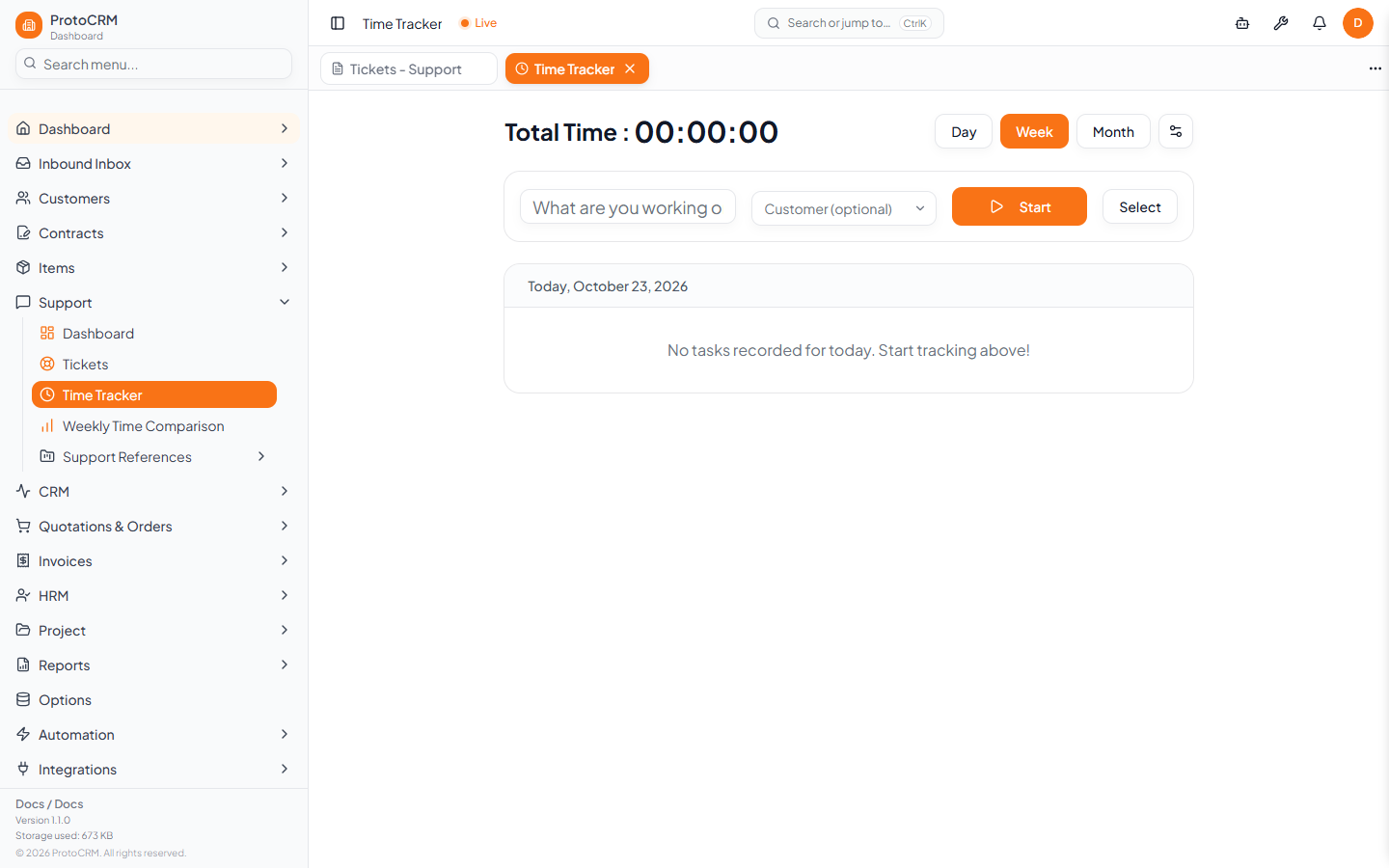
Track time
- Open Time Tracker.
- Type what you are working on in the task box (optional; an untitled task is created if you leave it empty).
- Optionally choose a Customer.
- Click Start. Stop the timer when you finish.
- Today's entries appear below, grouped by task. With Week or Month selected, entries are also listed by day.
Review and edit
- Choose Day, Week or Month to change the period shown.
- Edit an entry with the pencil icon (title, customer, support ticket); start and end times can be edited inline.
- Click Select to choose entries, then export them as a CSV file or delete them.
- The options button has an auto-stop setting: a running timer stops when you start a new one.
- Running ticket timers started from a ticket also show here under Running Ticket Timers and can be stopped.
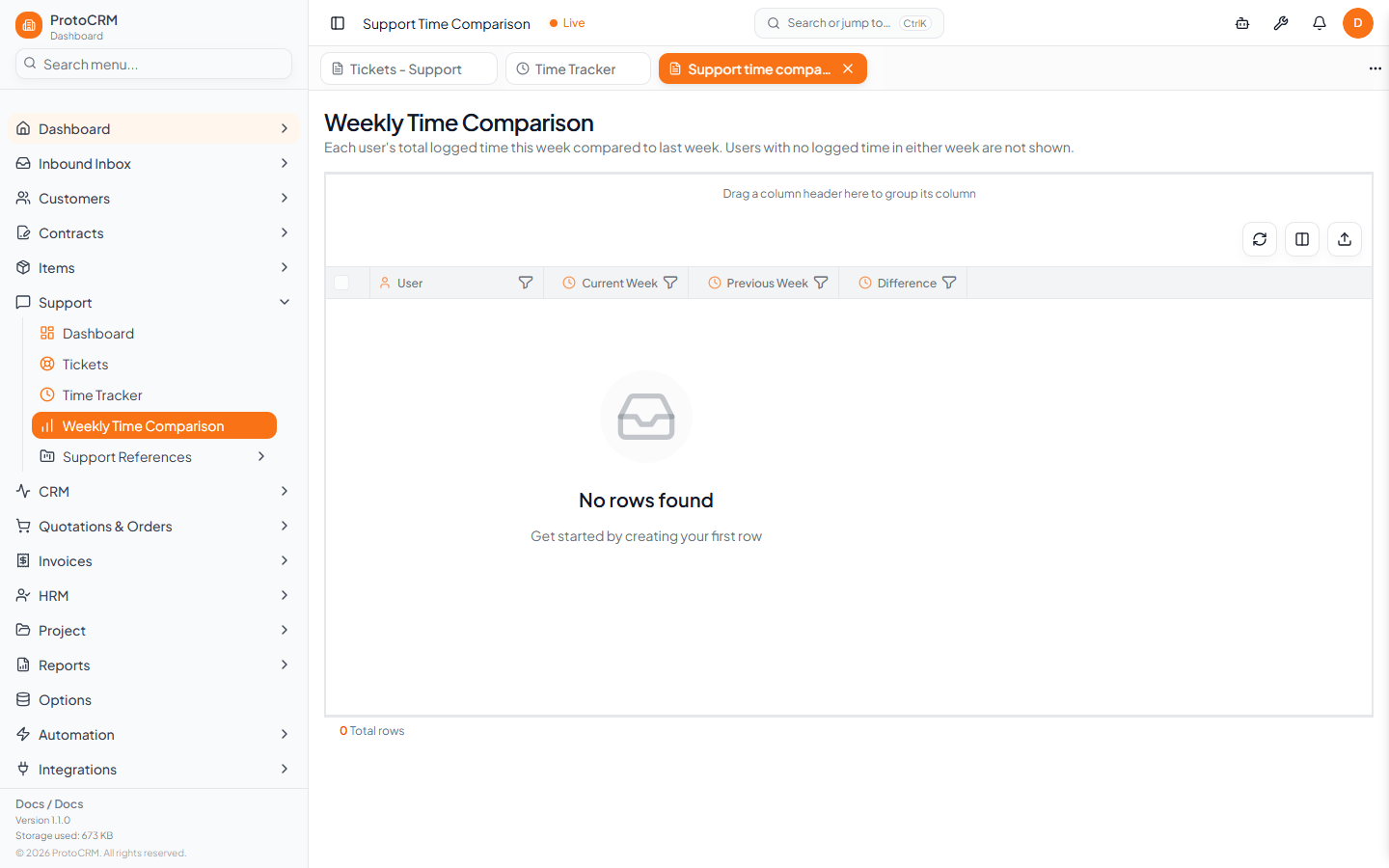
Weekly Time Comparison
A read-only grid with one row per user and the columns User, Current Week, Previous Week and Difference. Weeks start on Monday, only finished time entries count, and users with no time in either week are not listed.
Tips
- Timers keep running until you stop them, so stop before leaving for the day.