A scheduled job fires a trigger event on a cron timetable, so workflows can run on time instead of on a user action. Find them at Automation > Scheduled Jobs (/automations/scheduled-jobs). The page shows Total Schedules, Active Schedules and the Next Dispatch, plus a list with search and resource and status filters.
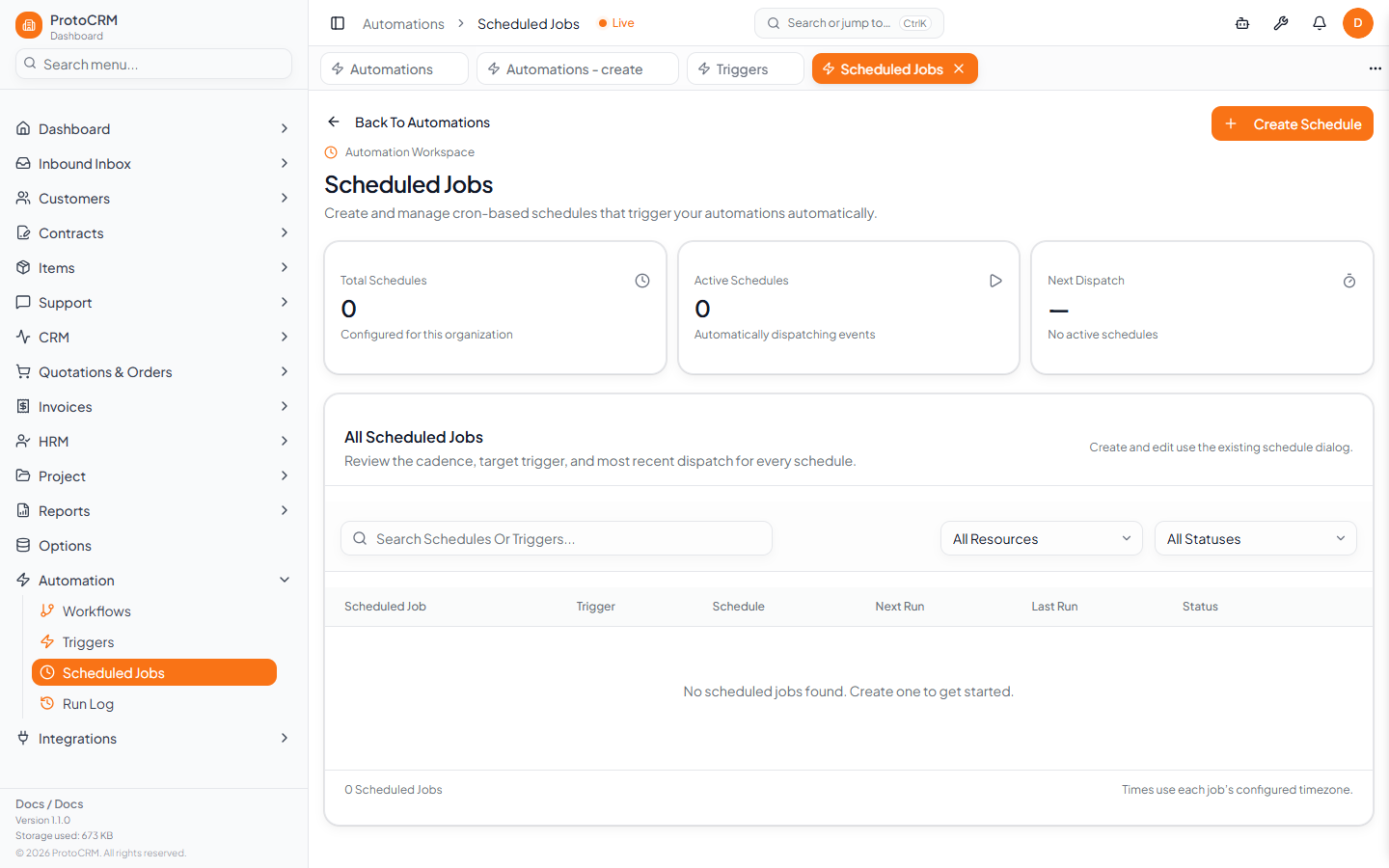
Create a schedule
- Click Create Schedule.
- Under General Information enter a Name (at least 2 characters) and optional description.
- Under Execution Configuration set the Cron Expression (the Cron Helper assists) and the Event to Trigger.
- For resource-based events pick the resource (Contracts, Licenses, Customers, Projects, Contacts). The dialog shows Generated Query Logic: the event fires once for each matching record. Without filters it queries all records in the table, so the dialog warns you.
- For a single event, use the JSON Payload under Event Payload Configuration; it must be valid JSON.
- Save. Existing schedules are edited with the same dialog (Edit Schedule) and can be deleted from the list.
Then connect a workflow
A schedule only fires the event. Create a workflow whose trigger is that same event (see automation/create-workflow), otherwise the Run Log shows No Match for it.
Tips
- The cron expression uses the standard five-field format (minute, hour, day of month, month, day of week), for example
0 8 * * *for every day at 08:00. Times use each job's configured timezone. - Keep filters tight so the job does not fire for every record.
- Check the Run Log after the first scheduled time to confirm it ran.