Send invoices to SoftOne
Only organization administrators can send. SoftOne must be configured and its mapping confirmed under Integrations → SoftOne ERP (see SoftOne connection and Field mapping).
One invoice
- Open an invoice that is Ready to send.
- In the SoftOne box, click Review And Send. Unsaved changes are saved first.
- Check the summary: invoice #, supplier, total, series, supplier code (TRDR), lines and the mapping template. Expand What will be sent to see the exact data.
- Click Send to SoftOne. The stage becomes Sending, then Sent.
If something blocks sending, the dialog says Can't send yet. Fix these first: and lists the issues. See Troubleshooting.
Several invoices at once
-
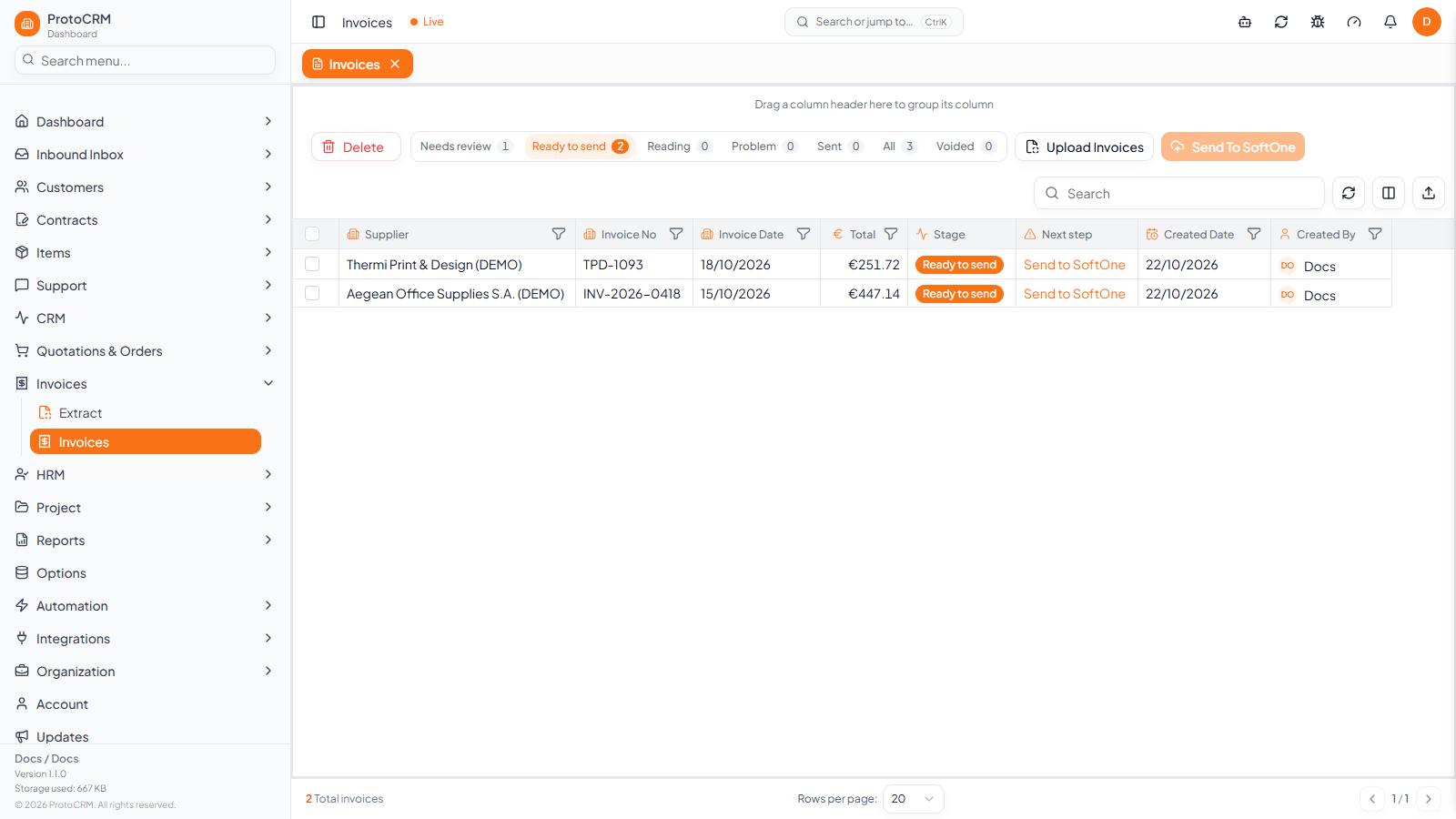
In the invoice list, open the Ready to send tab.
-
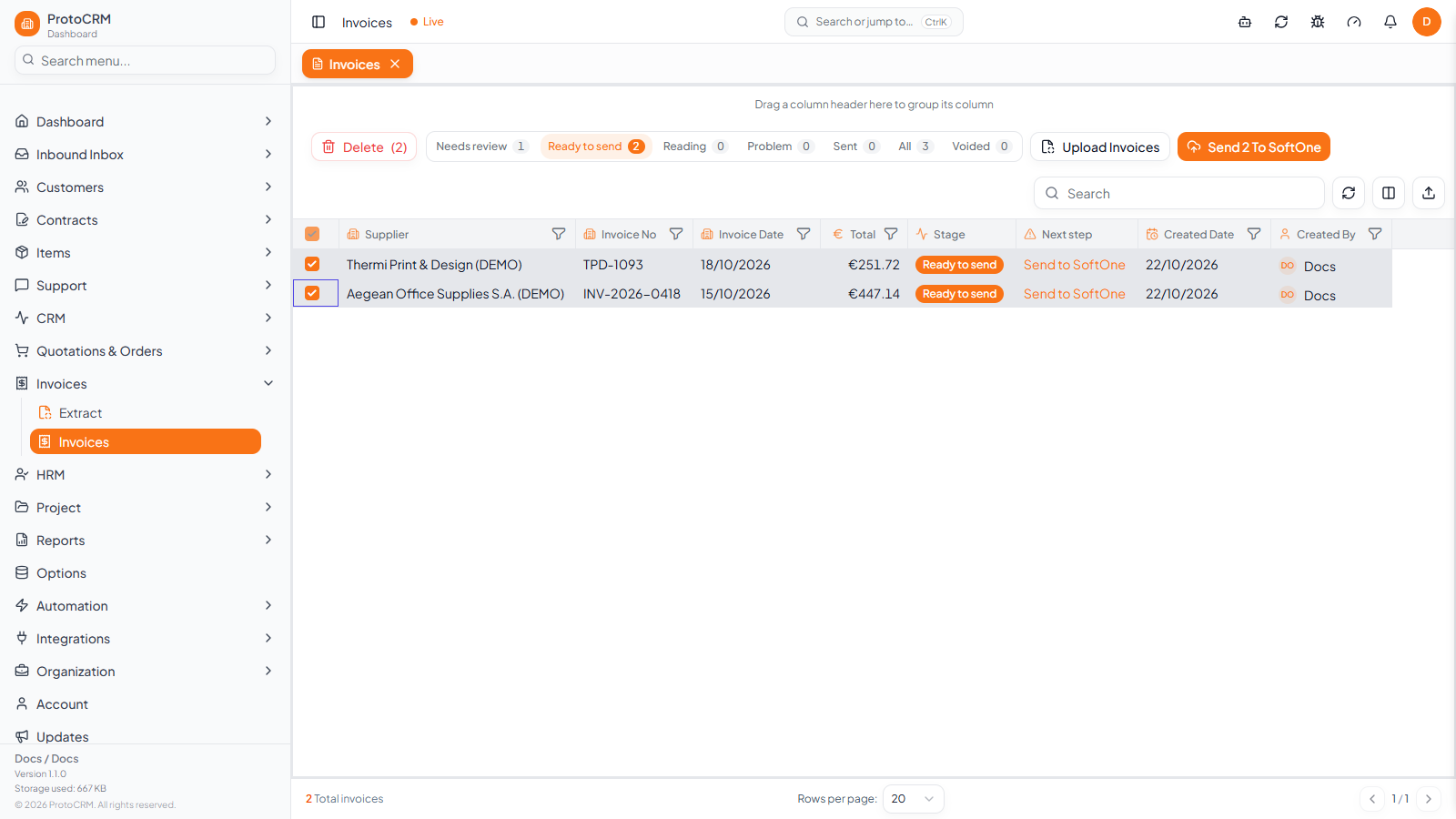
Tick the invoices to send.
-
Click Send N to SoftOne. They are sent one at a time, each checked again just before sending. Invoices that are not ready are skipped, and a message tells you how many were sent, failed or skipped.
Send automatically
An administrator can turn on Send clean invoices automatically under Integrations → SoftOne. Invoices with no issues are then sent as soon as they are read; anything to check waits in Needs review.
Voiding
A sent invoice cannot be deleted. Use Void and give a reason. This keeps it for the record and blocks resending, but changes nothing in SoftOne.