Add and invite members
There are two ways to get people into an organization: a super admin adds an existing user directly, or an organization owner or admin invites someone by email.
Option A: add an existing user (super admin)
Admin sidebar → Organization → Organization → open the organization → tab Members → Add member.
- In the Add member dialog search and pick the User. Only users who do not belong to any organization are listed. If there are none, the button is disabled.
- Choose the Role: Member or Admin. The owner is set when the organization is created and cannot be added here.
- Click Add member. A message confirms Member added and the member's side panel opens.
- In the panel set the Department (a label only, it does not change access), tick the Groups and optionally Custom permissions (added on top of groups). Click Save changes; a message confirms Member saved.
To edit a member later, open the row menu and choose Quick edit access. Clicking the row opens the full user profile instead. Other row actions: Sign in as this member, Resend verification email and Remove from organization (Member removed). Owners cannot be removed and ownership cannot be transferred here.
Option B: invite by email (organization owner or admin)
Inside the organization: Organization page → card Organization Members → Invite Member.
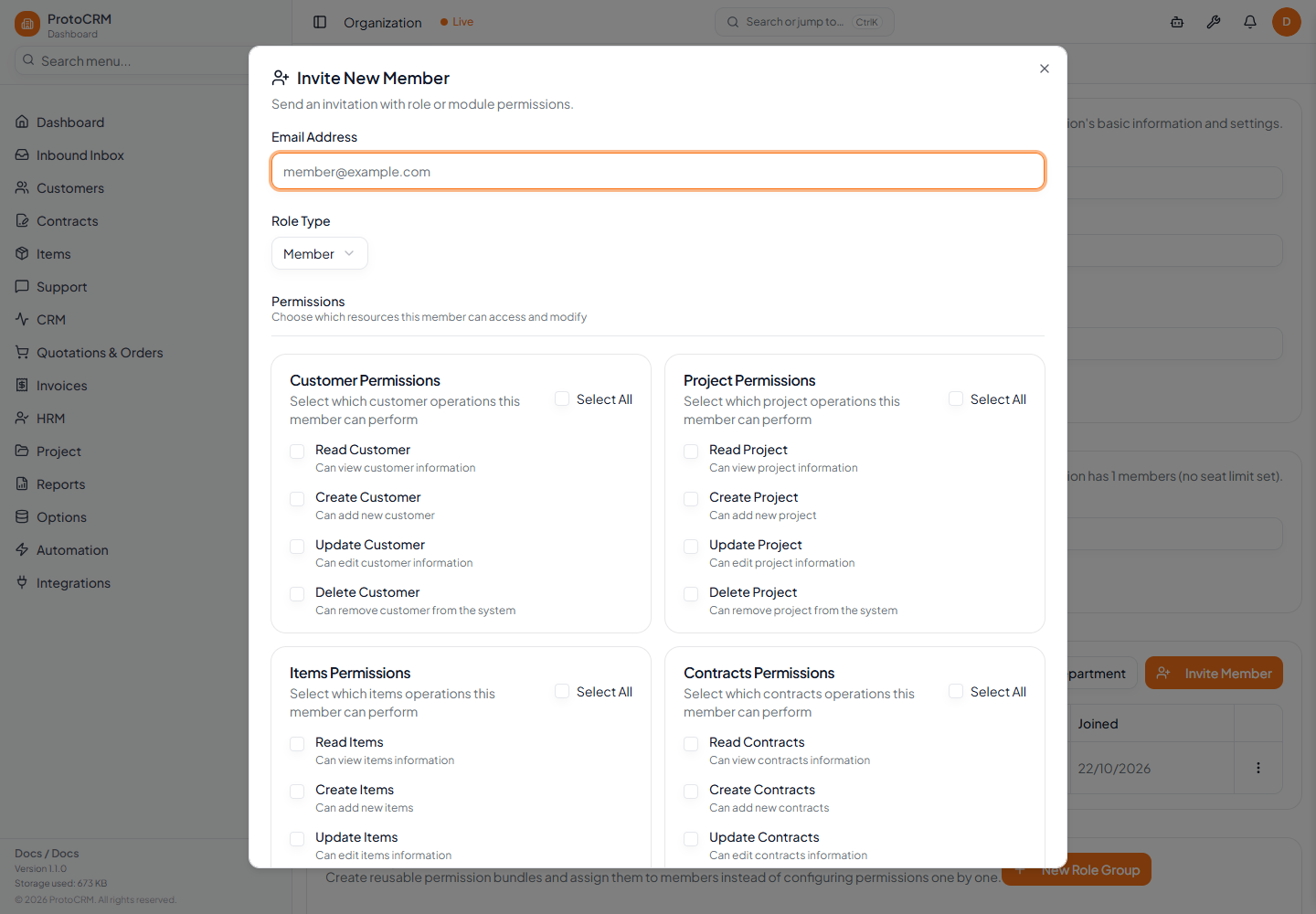
- In the Invite New Member dialog enter the email (placeholder
member@example.com). - Choose Role Type: Admin or Member.
- For a member, tick the Permissions (resources the member can access and modify). At least one is required. Only modules enabled for the organization are shown.
- Click Send Invitation. A message confirms Invitation sent to {email}. The person accepts it through the link in the email. Pending invitations are listed on the same page.
Invitation emails use the organization SMTP if configured, otherwise the global one (Global SMTP).
Tips
- The organization's seat limit applies: adding a member is refused when the limit is reached. See Seat requests.
- A member added with no groups and no custom permissions can use every module the organization has. Restrict them with Groups (Permissions and groups).
- Prefer assigning Groups over ticking permissions one by one.