Inbound Rules decide which emails go to Inbound by themselves. Rules are checked top to bottom and the first one that matches decides. Open Inbound > Inbound Rules (/inbound-rules), or use Make a rule from these in Mailbox after selecting emails.
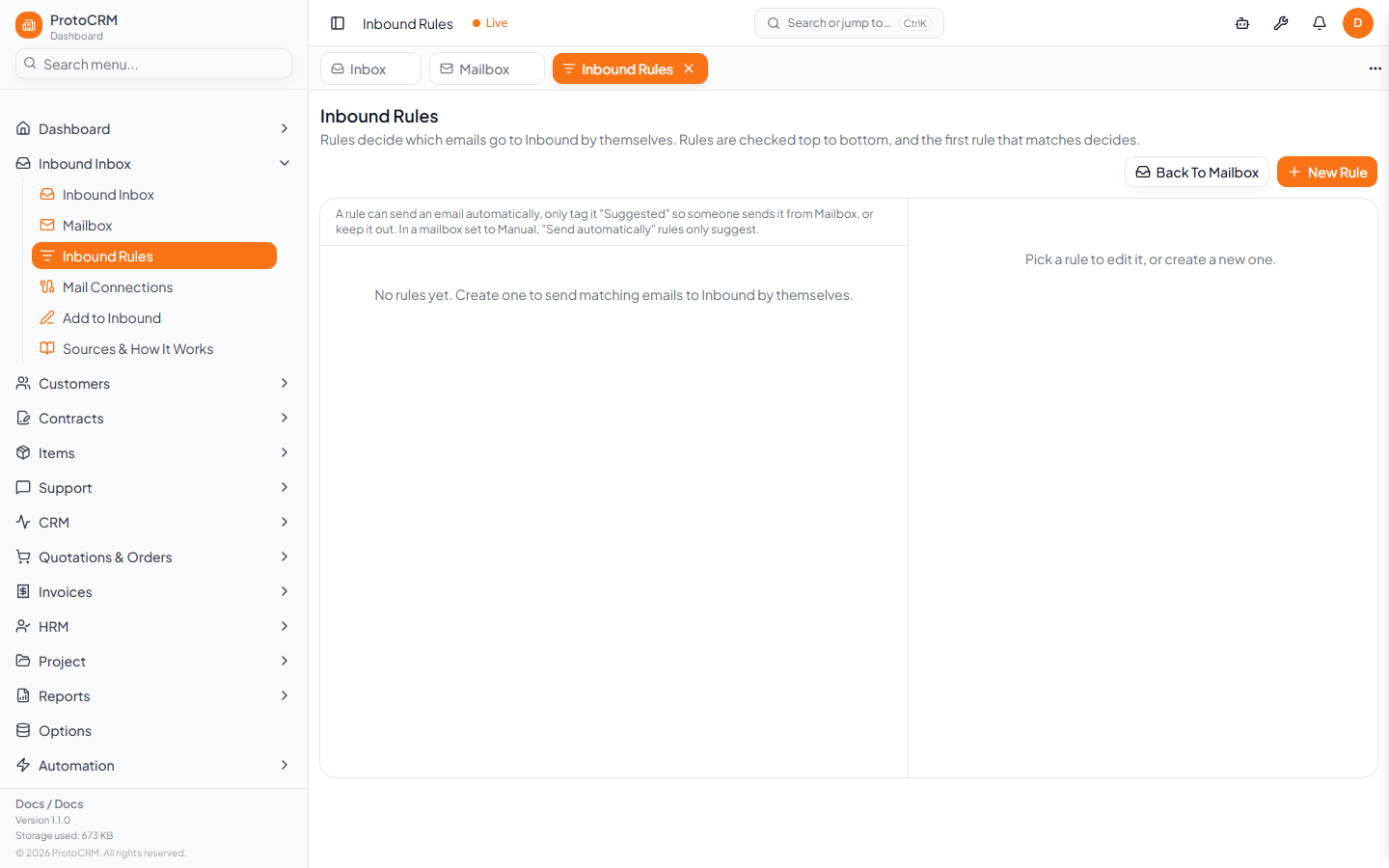
Steps
- Click New rule and enter a Name.
- Under Applies to these mailboxes, tick the mailboxes. Only an administrator can add rules to a shared mailbox.
- Under When an email matches all of these, fill in any of: From contains, Subject contains, Text contains, Except when it contains, Only emails with attachments. A rule with no conditions never matches.
- Under Then, choose an action (below).
- Optional: read attachments (PDF, images, Excel) into the Inbound text, or also create invoices from PDF and image attachments (not available with Suggest it in Mailbox).
- Use Test against recent mail to see how many recent emails match.
- Click Save rule. Tick Apply to the last 7 days too to include recent mail.
Actions
| Action | Result |
|---|---|
| Send to Inbound automatically | Arrives in the Inbox within a few minutes |
| Suggest it in Mailbox | Tagged "Suggested"; someone sends it by hand |
| Keep it out of Inbound | Useful with mailboxes set to Everything (bills, internal mail, suppliers) |
Tips
- Commas in a box mean "any of these". Empty boxes are ignored.
- Rules only act on mailboxes in Rules or Everything mode (see inbound/connect-mailbox); in Manual mode they only suggest.
- Use Move Up / Move Down to reorder rules. Deleting a rule does not remove emails it already sent.