Review an invoice
Open an invoice from the Invoices list. The original document is on the left and the data read from it is on the right. Drag the divider to resize; the position is remembered.
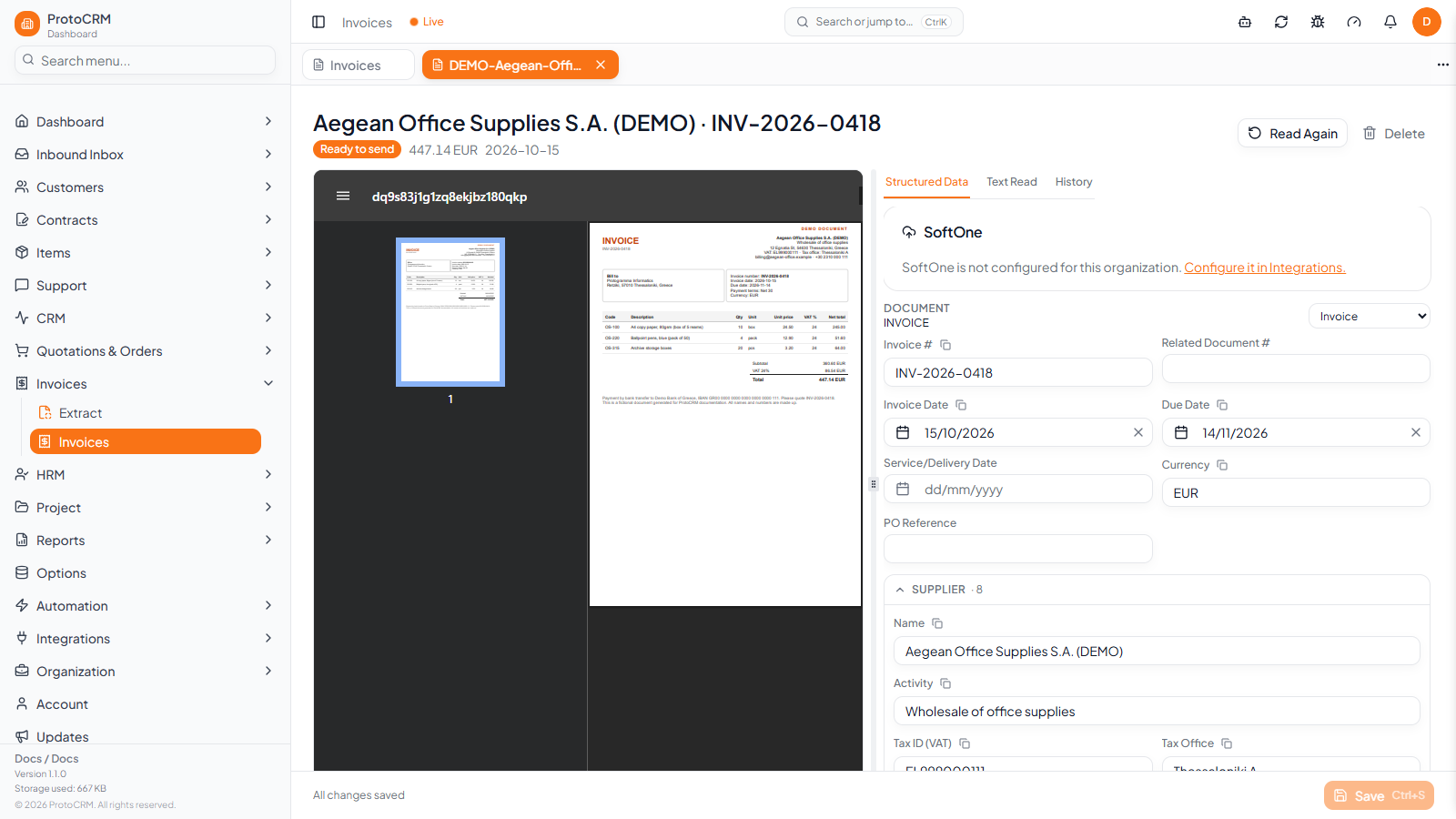
The three tabs
- Structured Data: the fields to check and edit: header (type, invoice #, dates, currency, PO reference), Supplier, Buyer (bill-to), Payment, Tax authority (myDATA), line items, VAT breakdown and totals.
- Text Read: the full text read from the document, with a copy button.
- History: every reading and sending attempt, with any error.
Issues
A panel at the top of Structured Data lists what needs attention:
- Blocks sending (red): fix before sending. For example a missing supplier, invoice number, date or total, totals that do not add up, or no valid line items.
- Things to check (amber): can be sent, but check first. For example a missing currency, line totals that do not match quantity × price, a due date before the invoice date, a possible duplicate invoice number, or a buyer VAT number that is not yours.
- For information (grey): no action needed.
Click Go to field next to an issue to jump to it. The panel updates as you type.

Edit and save
Change any field directly; edited fields are marked. Add or remove line items and bank accounts as needed. An Unsaved changes bar appears at the bottom.
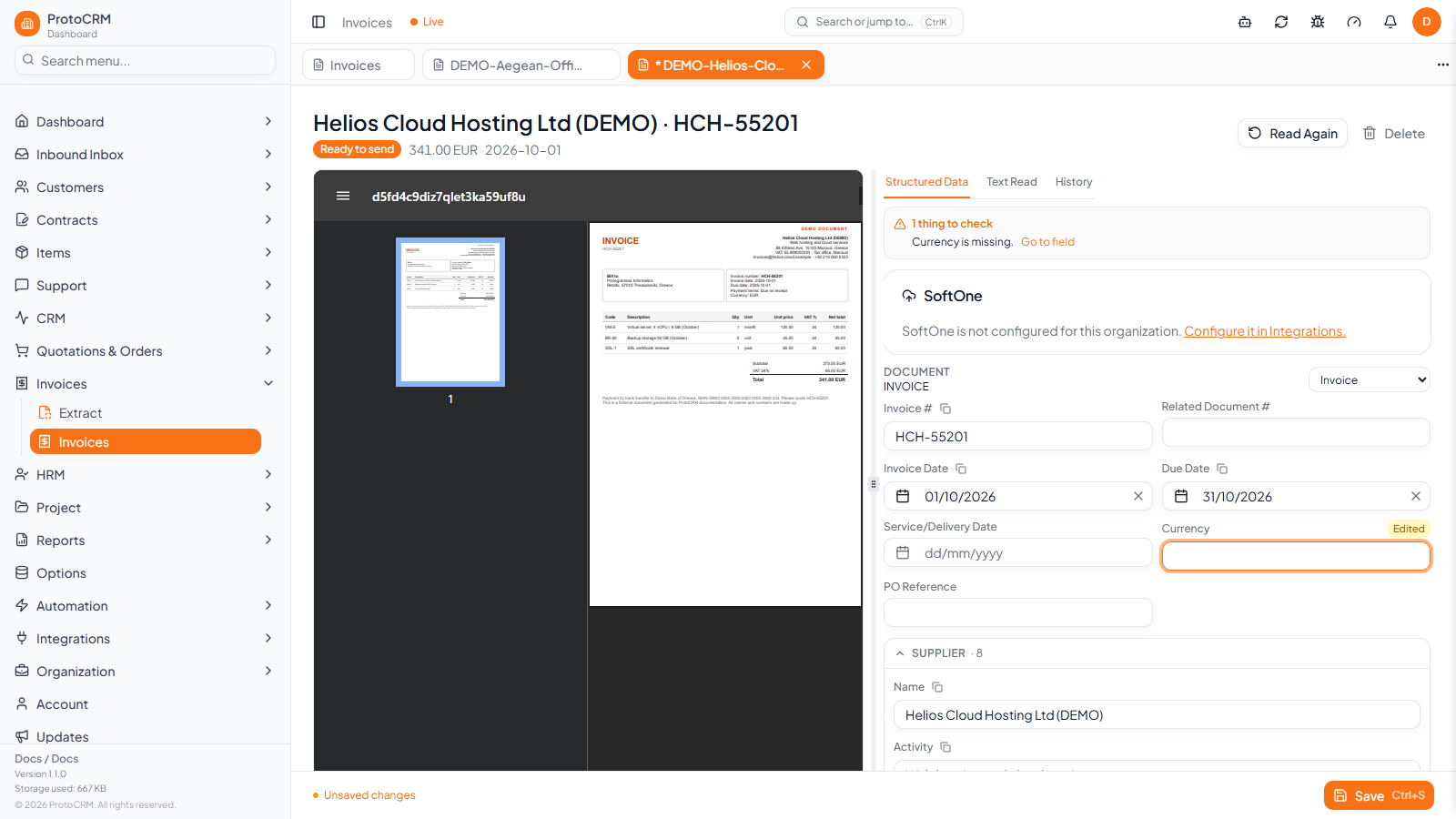
Click Save (or press Ctrl+S). Fixing every issue moves the invoice to Ready to send.
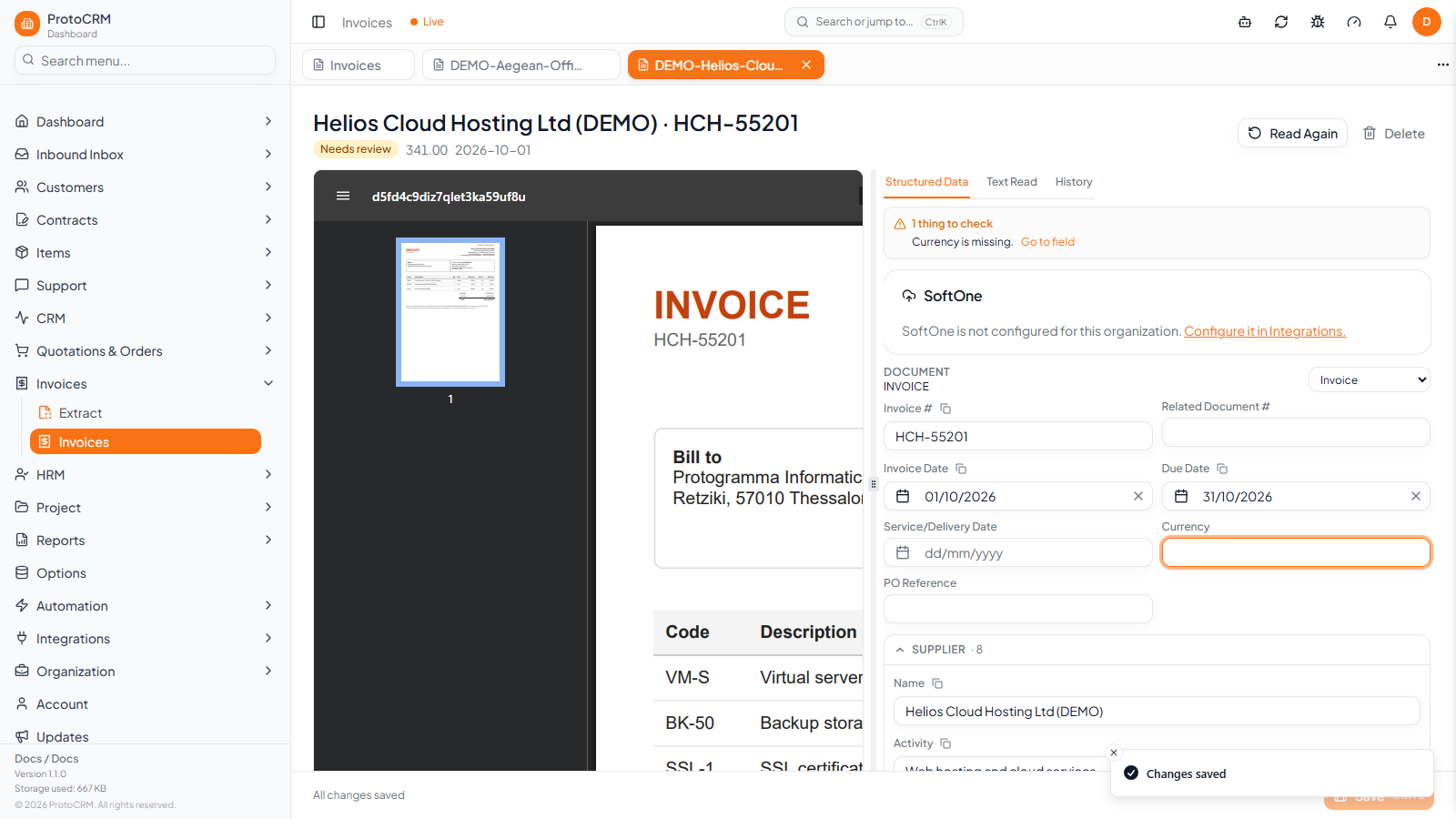
If the document was read badly, click Read again (top right). It appears only when the original file was kept.
Finding invoices
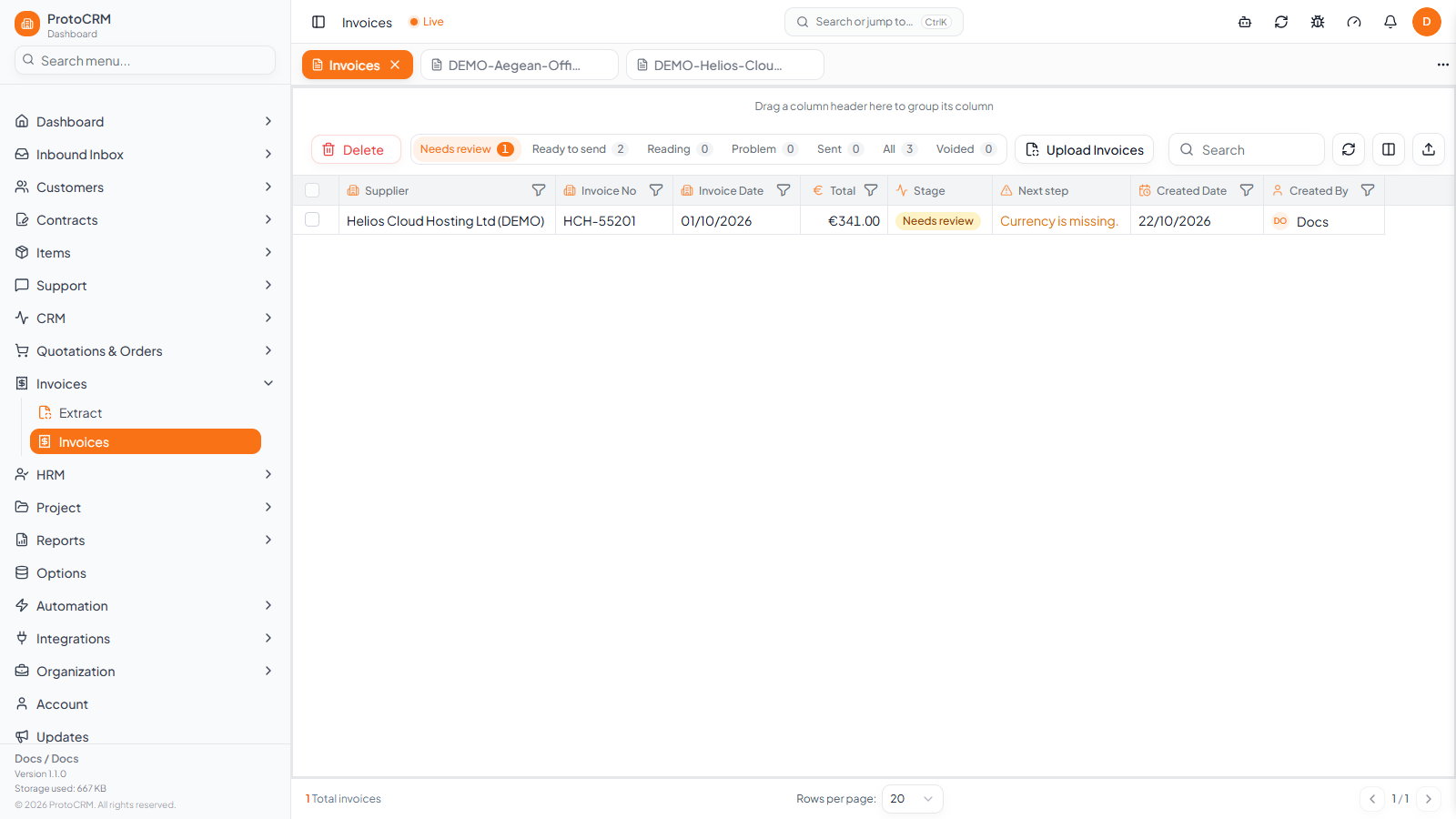
The list opens on Needs review. Use the stage tabs, the search box and the column filters (supplier, invoice no, invoice date, total, created date, created by). The Next step column says what each invoice needs.
Next: Send to SoftOne.