How to build a workflow, add conditions and actions, and activate or pause it.
Create
- Go to Automation > Workflows (
/automations) and click Create Automation (/automations/create). - Under Basic Information enter the Automation Name and an optional Description.
- Choose the Trigger Event (see
automation/triggers). Select the trigger first; actions can only be added afterwards. A side panel then lists the data fields available for that trigger. - Tick Organization-Wide if any user's action should trigger it; leave it unticked to trigger only on your own actions.
- Optionally add Conditions (below).
- Click Add Action, pick an Action Type and fill in its configuration (see
automation/actions). At least one action is required. - Leave Enabled on and click Create Automation.
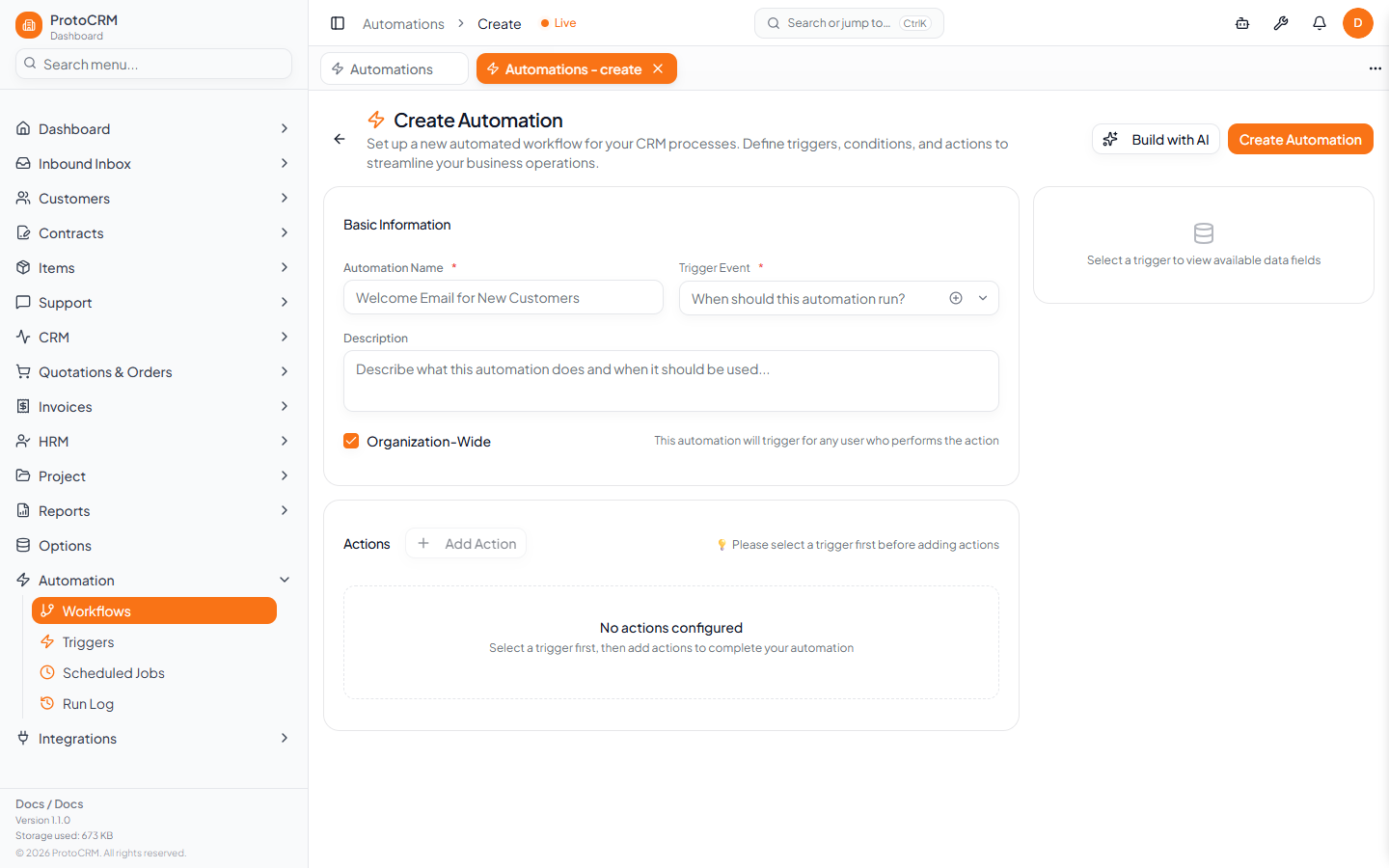
The Build with AI button opens a dialog that pre-fills the form from a description; always review the draft before saving.
Conditions
A condition group combines rules with AND or OR. Each rule is a field, an operator and a value.
| Operators |
|---|
| equals, not_equals, contains, not_contains, starts_with, ends_with |
| gt, gte, lt, lte |
| in, not_in |
| is_empty, is_not_empty |
The fields offered depend on the selected trigger. If conditions fail, no action runs and the Run Log shows Skipped.
Edit, pause, delete
- In the Workflows list use the row icons: History, Edit, the toggle (Active / Paused), and delete.
- Editing opens the same form (
/automations/<id>/edit).
Tips
- Pause a workflow instead of deleting it if you may need it again.
- Test with a harmless action (for example an in-app notification) first.
- Check the Run Log after the first real event.