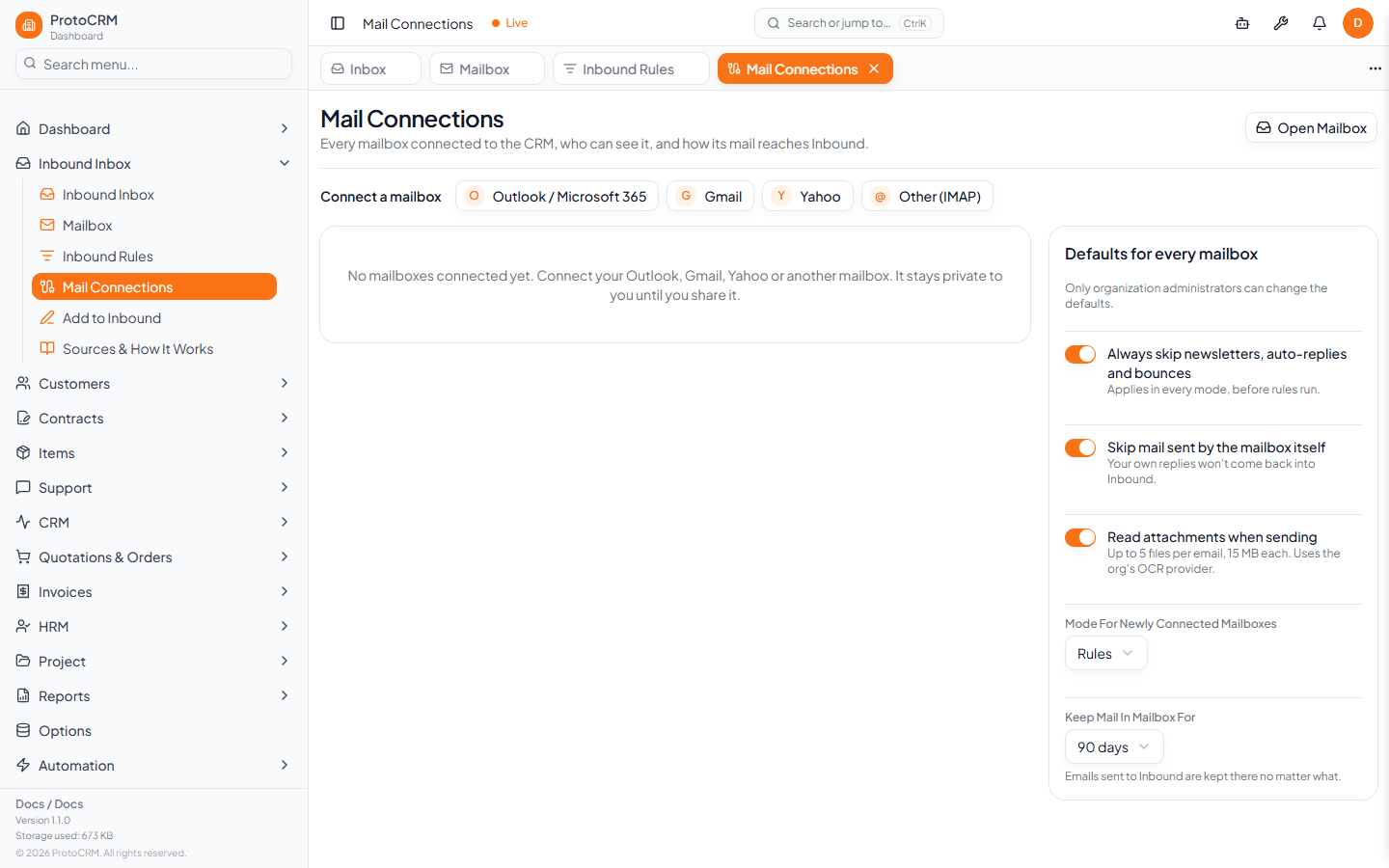
Connect an email account so its mail appears in Mailbox and can reach Inbound. Find it at Inbound > Mail Connections (/mail-connections).
Steps
- Open Mail Connections. Next to Connect a mailbox, click Outlook / Microsoft 365, Gmail, Yahoo or Other (IMAP).
- For Outlook, sign in on the Microsoft 365 page (
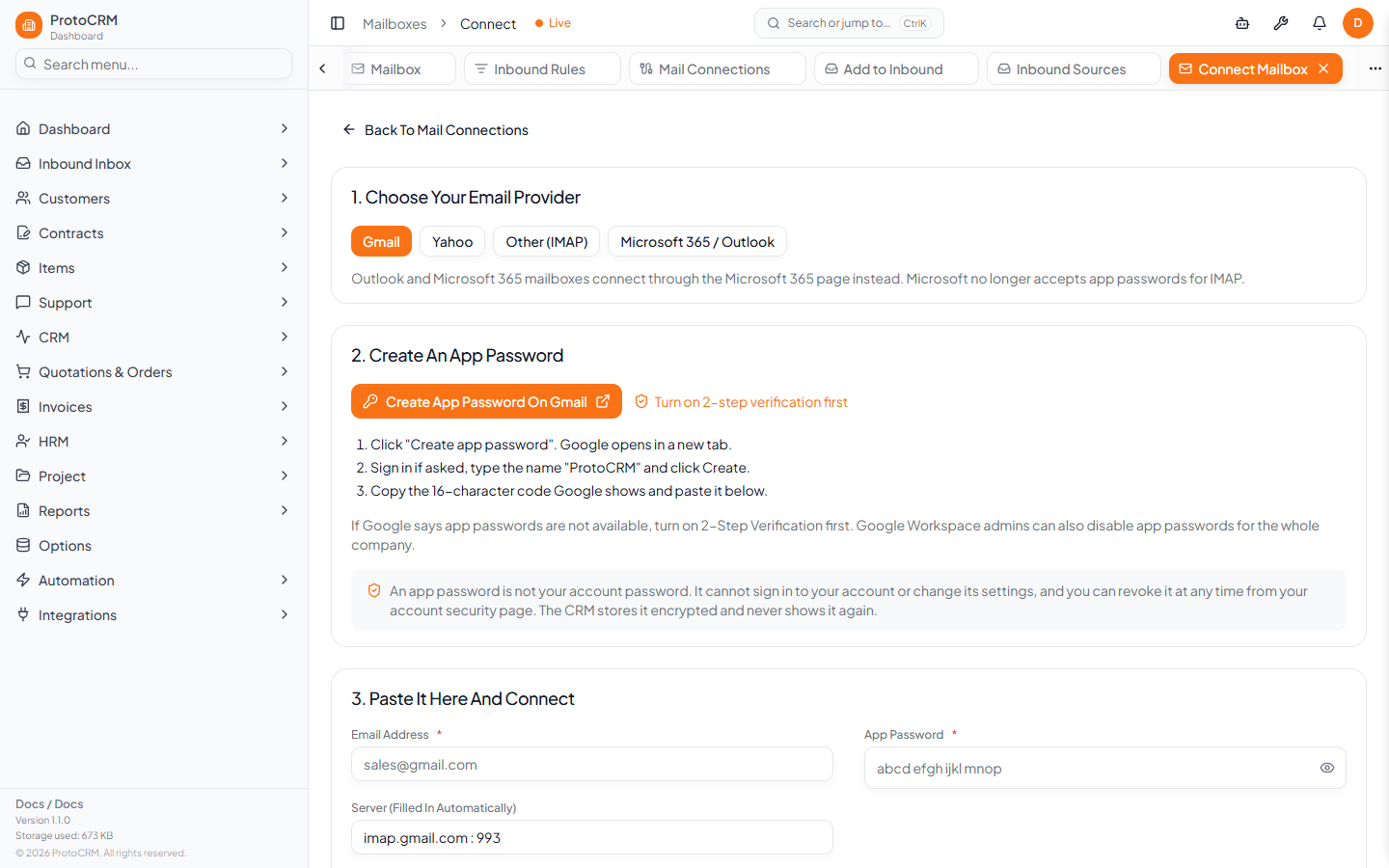
/microsoft365). - For the others, a Connect Mailbox wizard opens. Create an app password in the mail account (the wizard has a button for Gmail and Yahoo), then enter your Email Address and App Password. For Other (IMAP) also enter the IMAP Server, and optionally Port and Username. Click Test Connection, then Connect Mailbox.
- Back on the mailbox card, under How mail goes to Inbound, pick a mode (below).
- Under Who can see it, keep it private (Only me) or share it with A group, Admins only or the Whole organization.
Modes
| Mode | Behaviour |
|---|---|
| Paused | No new mail is fetched. Nothing goes to Inbound. |
| Manual | All mail shows in Mailbox. Nothing goes to Inbound until someone sends it. Matching rules only add a "Suggested" tag. |
| Rules | Mail matching a Send automatically rule goes in by itself. The rest can be sent by hand. |
| Everything | Every email goes in, except newsletters, auto-replies, bounces and mail caught by a Keep out rule. |
Defaults and maintenance
- Defaults for every mailbox (administrators only): skip newsletters, auto-replies and bounces; skip mail sent by the mailbox itself; read attachments; mode for new mailboxes; how long mail stays in Mailbox (30 days, 90 days or 1 year).
- Use Check Now, View mail, Activity log or Reconnect on a mailbox card. A mailbox showing Needs attention usually needs a new app password.
- Disconnect removes the mailbox and its mail from Mailbox. Items already in Inbound stay.
Tips
- Personal accounts are always private to you until you share them.
- Start in Manual mode and move to Rules once your rules work.