The Run Log (/automations/run-log) records every trigger the system received and what happened to it, across all workflows. Each workflow also has its own History page (/automations/<id>/history, the activity icon in the Workflows list).
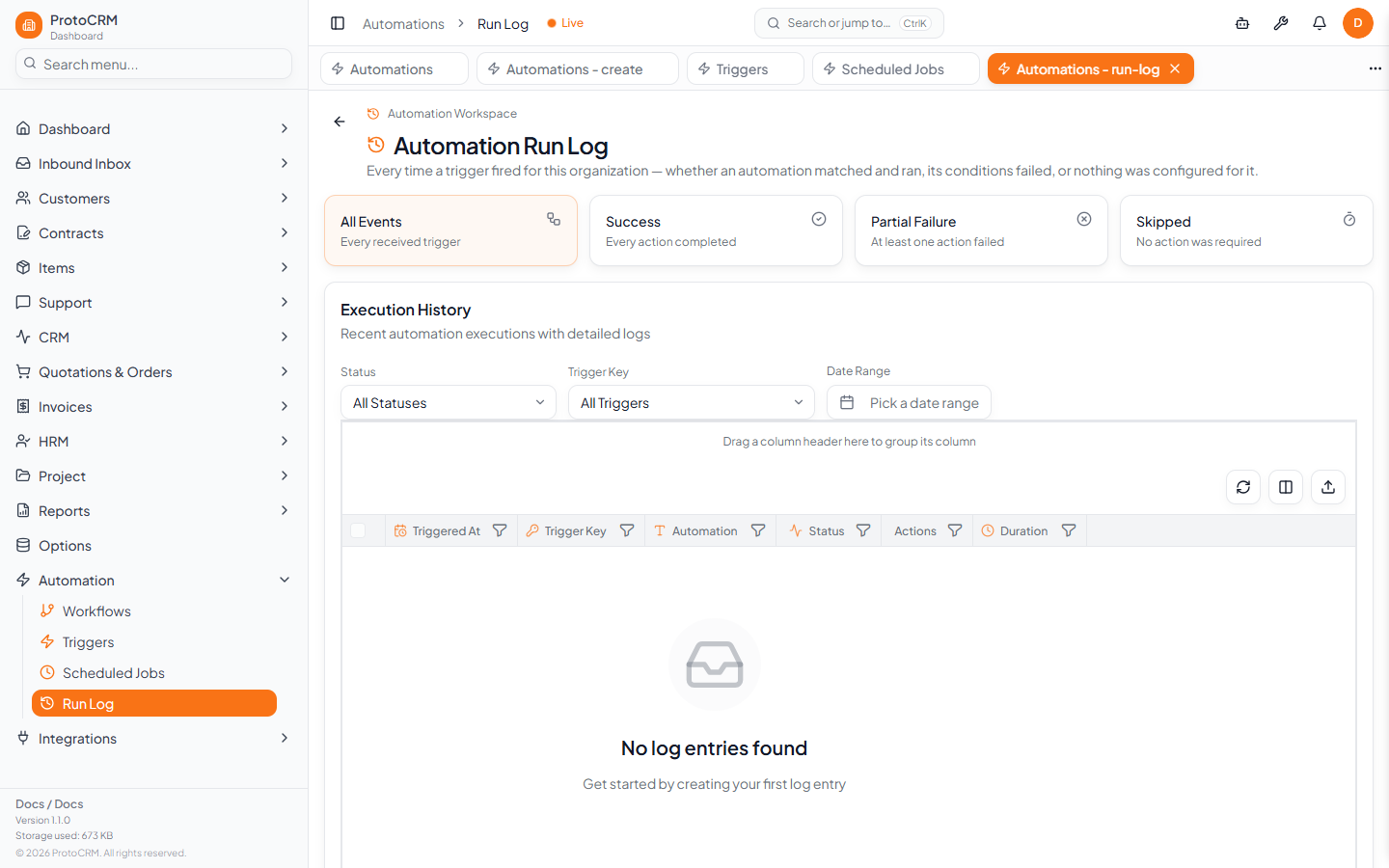
Columns
| Column | Meaning |
|---|---|
| Triggered At | When the event arrived |
| Trigger Key | The event, for example order_created |
| Automation | The workflow that matched (a link to it), or "no automation matched" |
| Status | Outcome (below) |
| Actions | Actions succeeded out of total, for example 2/3 |
| Duration | How long the run took, in seconds |
Statuses
| Status | Meaning |
|---|---|
| Success | Matched, conditions passed, every action succeeded |
| Partial Failure | At least one action failed, others ran |
| Failed | Every action failed, or the runner itself errored |
| Conditions Not Met | Matched, but conditions were false (the top card calls this Skipped) |
| No Match | Valid trigger, but no workflow listens to it |
| Invalid Trigger | The trigger key is not registered |
Steps
- Open Automation > Run Log.
- Click an outcome card (All Events, Success, Partial Failure, Skipped) or use the Status, Trigger Key and Date Range filters. The grid also has column filters.
- Click a row to open Run Details: status, duration, trigger key, the workflow, the error (if any), the Action Results and the Trigger Payload that was evaluated.
Tips
- Failures are recorded per action, so you can see which one broke.
- Rows stay even if the workflow is later renamed or deleted.
- Each workflow's own History page shows only that workflow's runs.