Use Add to Inbound (/inbound-new) to log a request that came by phone, in person or any other way. It is sorted and matched exactly like an email.
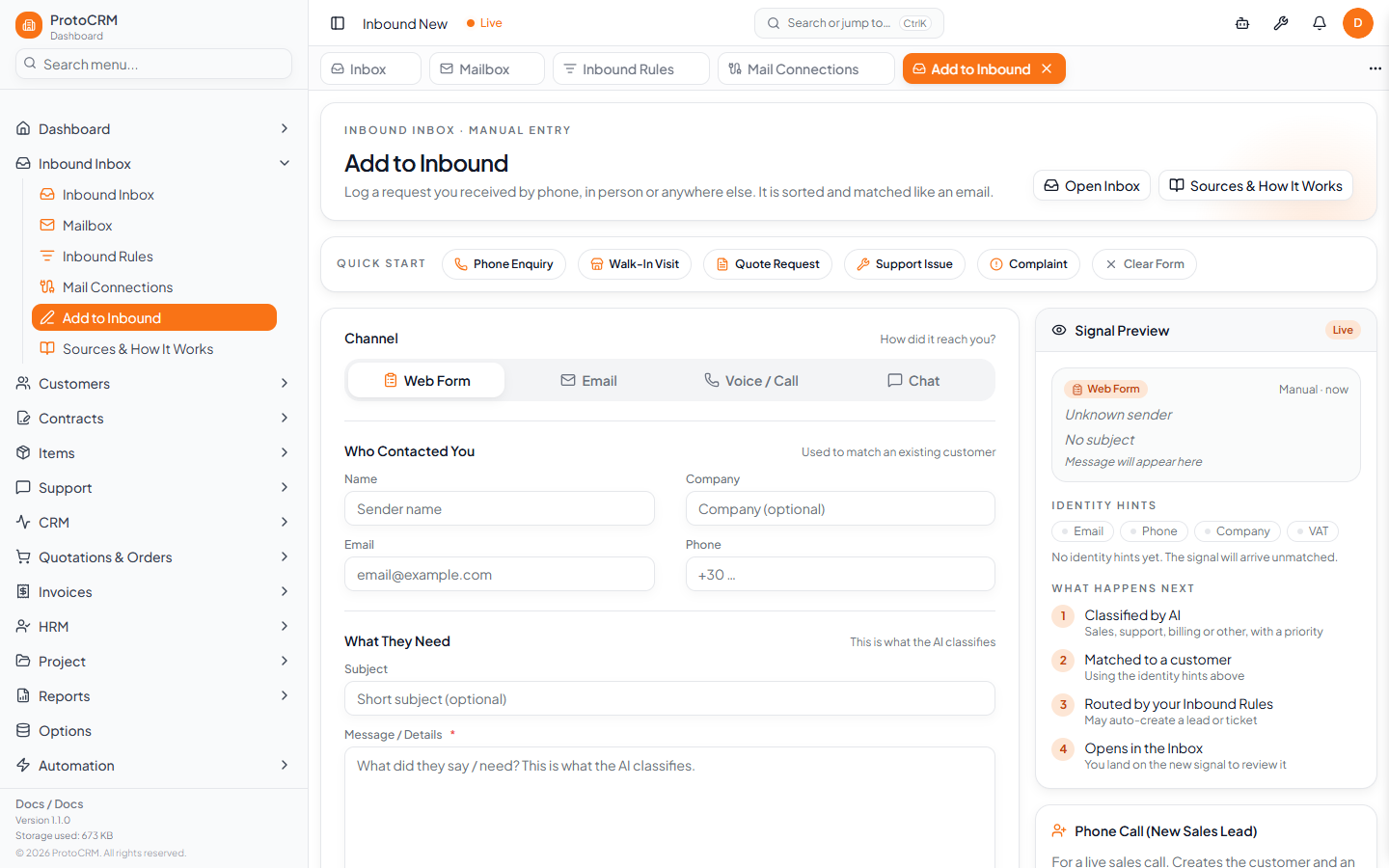
Steps
- Open Add to Inbound in the sidebar.
- Optional: pick a Quick Start template (Phone Enquiry, Walk-In Visit, Quote Request, Support Issue, Complaint) to prefill the text.
- Choose the Channel (Web Form, Email, Voice / Call, Chat).
- Under Who Contacted You, enter Name, Company, Email, Phone and VAT where known.
- Under What They Need, enter a Subject and the Message / details. The AI classifies this text.
- Click Create Signal. You land on the new item in the Inbox to review it.
What happens next
The AI classifies it (sales, support, billing or other, with a priority), matches the sender to a customer using the identity hints, applies your Inbound Rules and may auto-create a lead or ticket (see inbound/how-it-works for the conditions).
Tips
- The Identity Hints panel shows how many matching details you gave; add email, phone or VAT for reliable customer matching.
- For a live sales call, use New Sales Lead instead: it creates the customer and an unassigned lead in the Pipeline directly, skipping the Inbox.
- Clear Form resets all fields.